

Transferring Cloud Files to daDetective
Our Cloud Access Utility allows you to treat your files in the cloud like they are on your PC so you can select them from our Upload screen! If you prefer to have us do this for you, learn more about our White Glove Upload service!
Follow the steps below: (you can download these instructions as a PDF here)
1) Download the correct utility for your cloud provider below:

Watch Demo Video ==>
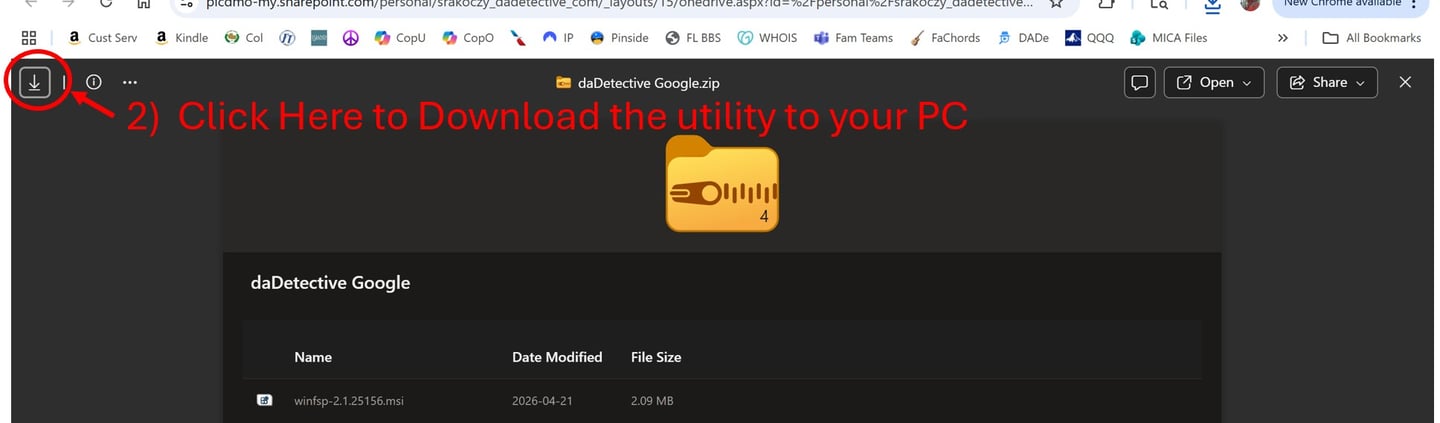
2) The links above will open the webpage below, Download the utility to your PC and return to this page
This tutorial shows how to setup Google Drive, but process is the same for all cloud providers
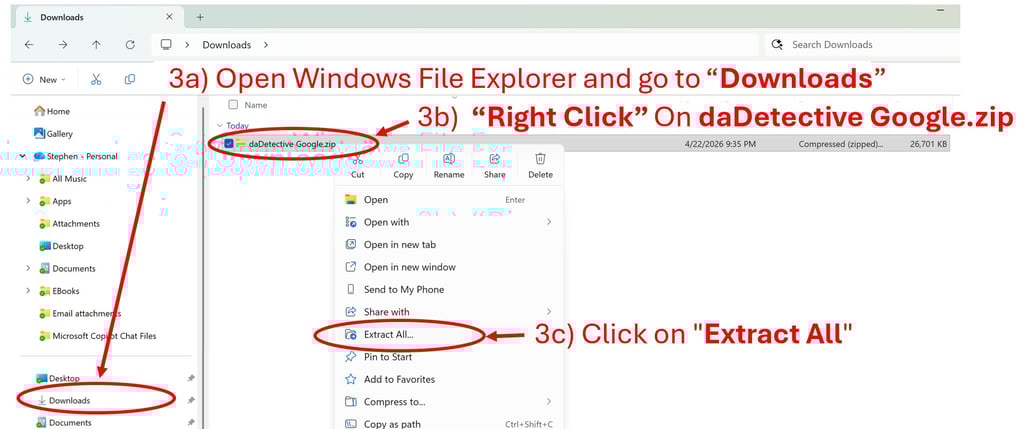
3a) Open Windows File Explorer and go to “Downloads”
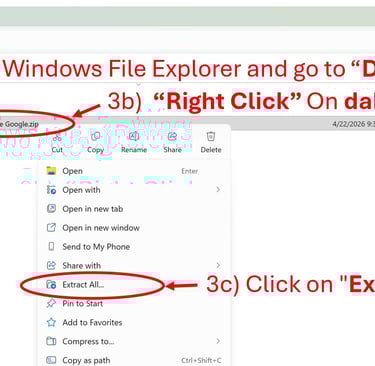
3b) "Right Click" on the "daDetective Google.zip" file (or daDetective DropBox.zip, daDetective Amazon etc)
3c) Click on "Extract All"
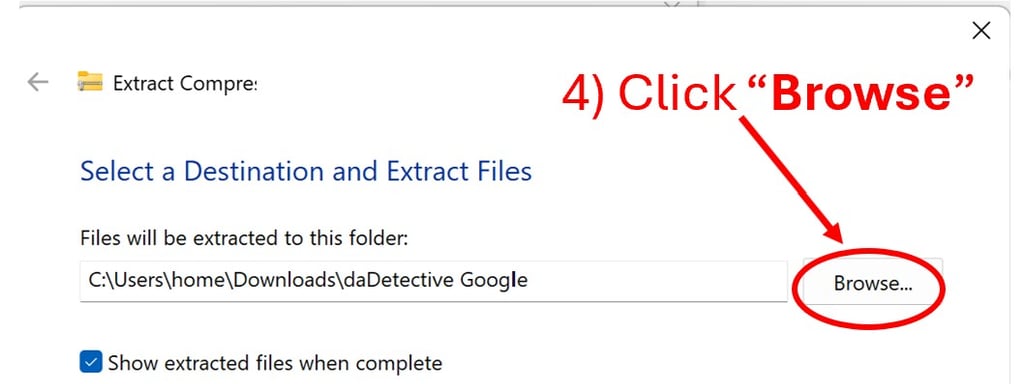
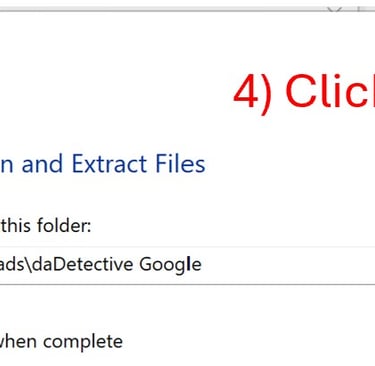
4) Click "Browse"
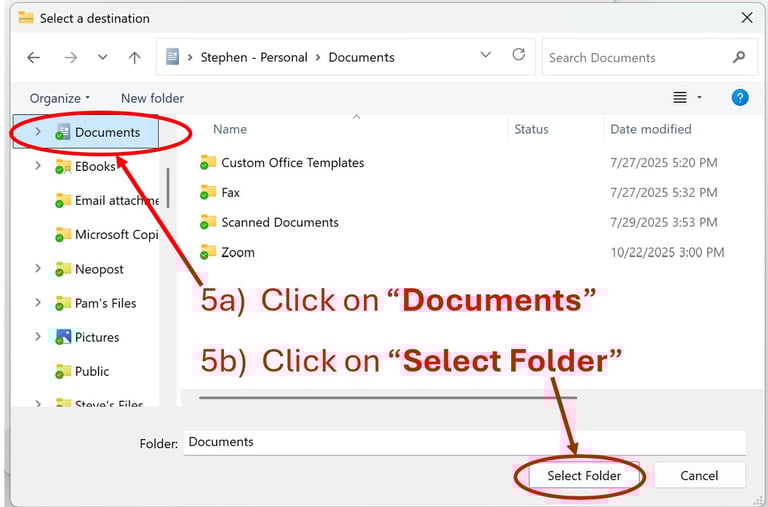
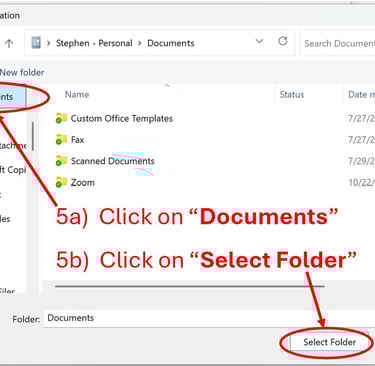
5a) Click on “Documents”
5b) Click on “Select Folder”
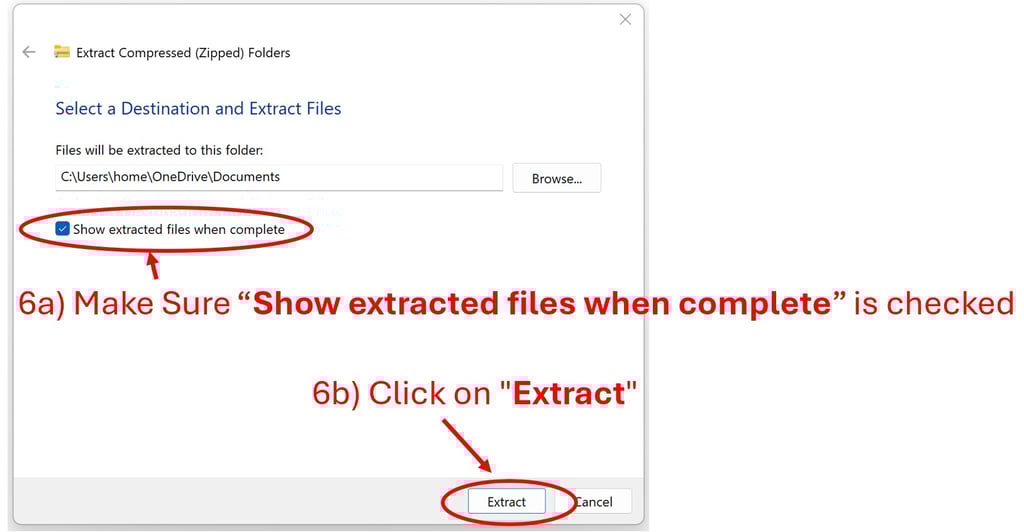
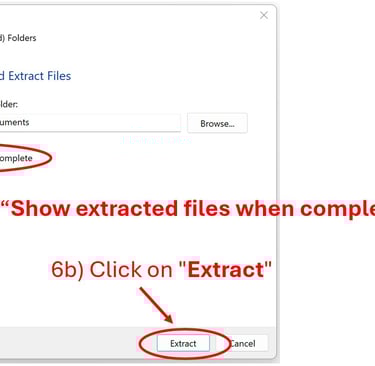
6a) Make Sure “Show extracted files when complete” is checked
6b) Click on "Extract"
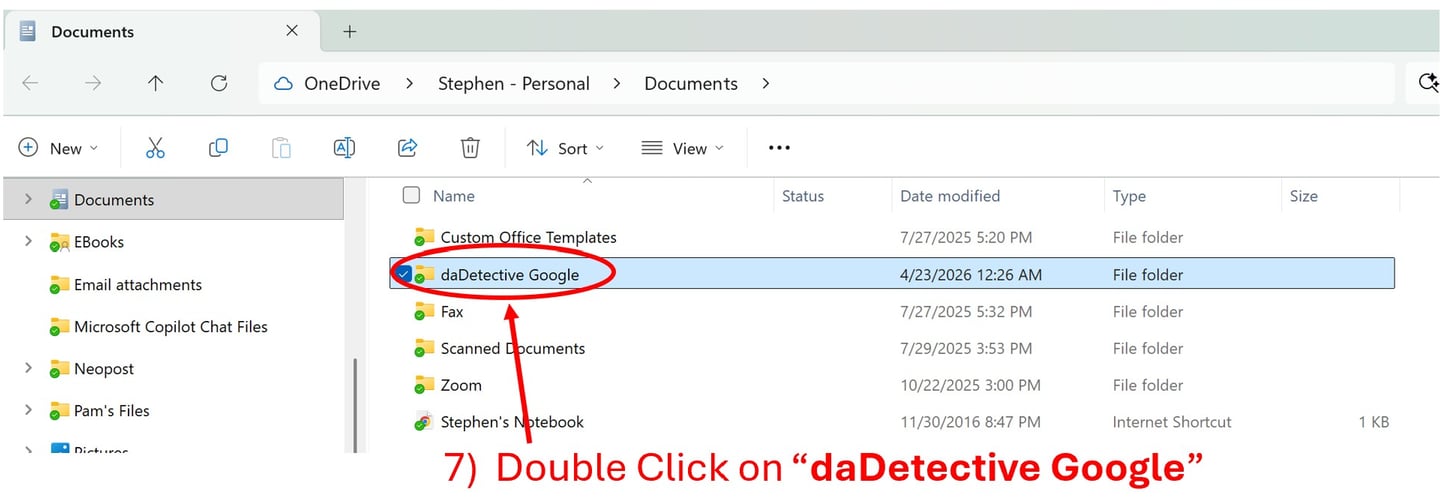
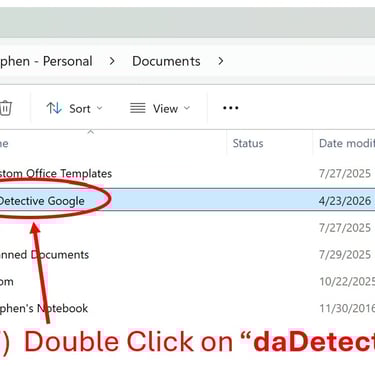
7) Double Click on “daDetective Google” (or daDetective DropBox, daDetective Amazon etc)
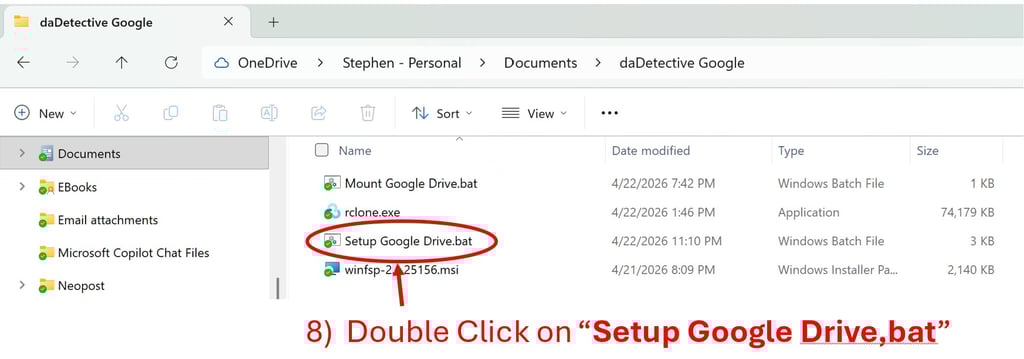
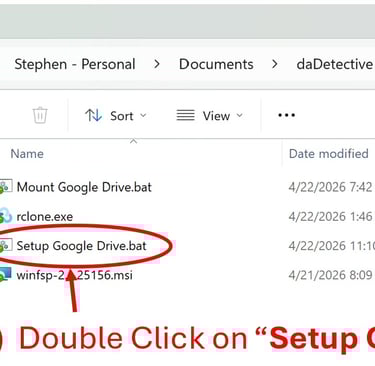
8) Double Click on "Setup Google Drive.bat" (or setup Dropbox, Amazon S3 etc)
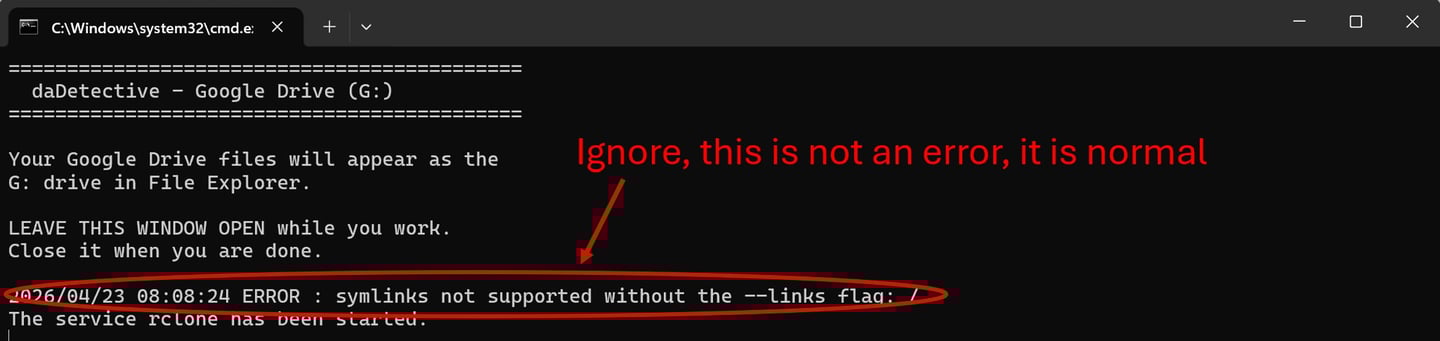
A small setup window will open. Leave it open while using your cloud drive. Depending on your cloud provider you may have to provide additional information. Do not close the black command box until you are done uploading files. It is required for your PC to see the cloud. Ignore the line that says “Error”, it is normal and not an actual error.
9a) You will be asked if you want to run this software, Click "Run"
9b) You will be asked "Do you want to allow this app to make changes to your device?" Click "Yes"
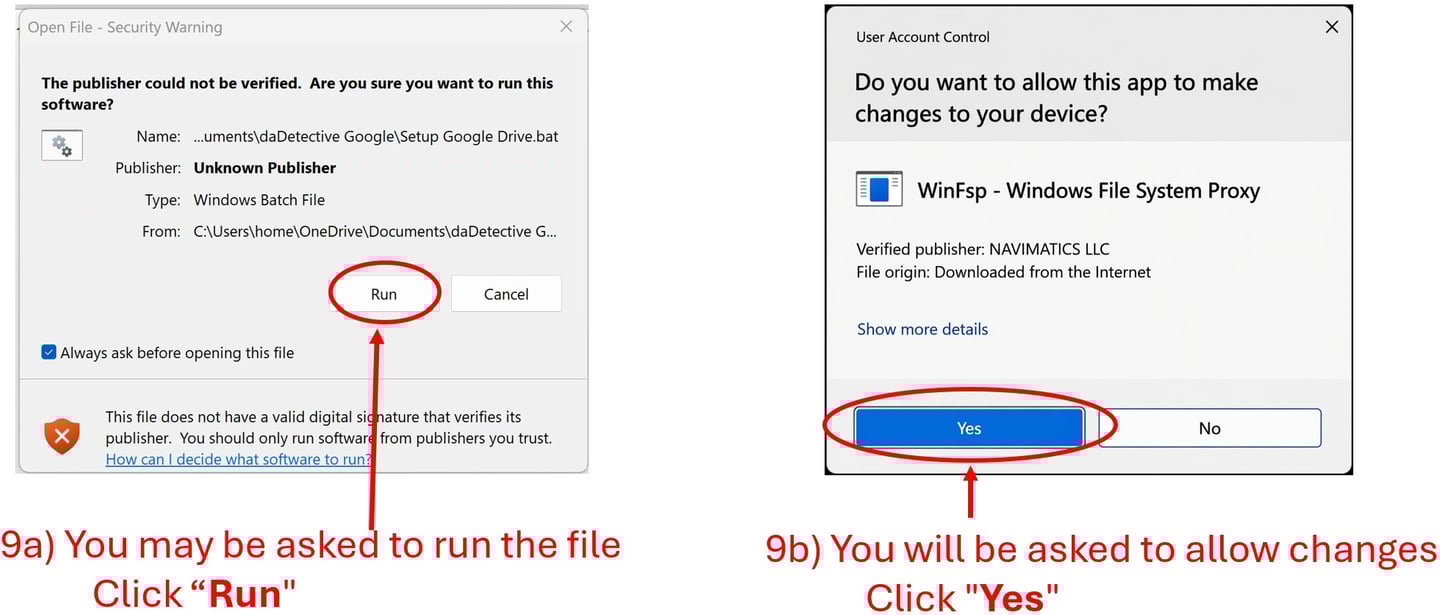
The program will open your browser to log into your provider.
10) Click on your account
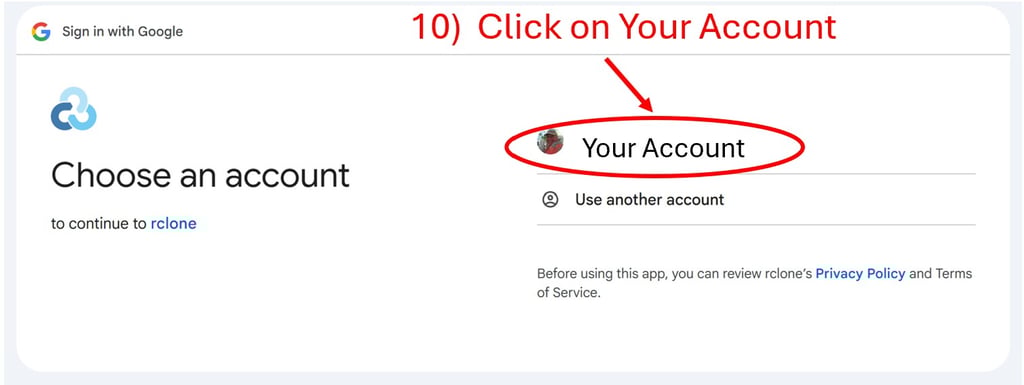
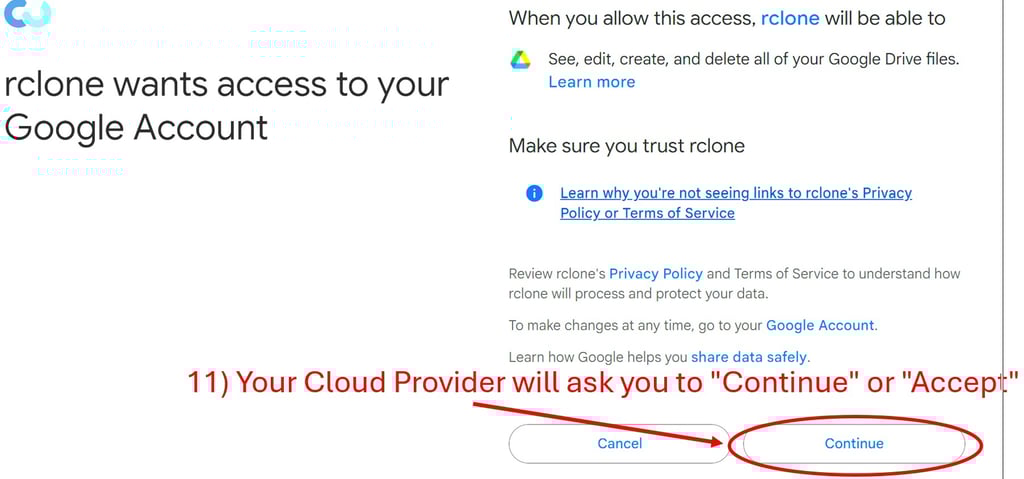
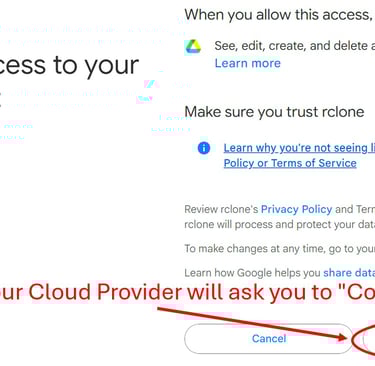
11) Your Cloud Provider will ask you to "Continue" or "Accept"
You will see a screen that says “Success” (Your provider may have a different message)

You have now set-up your cloud account as a drive on your PC!
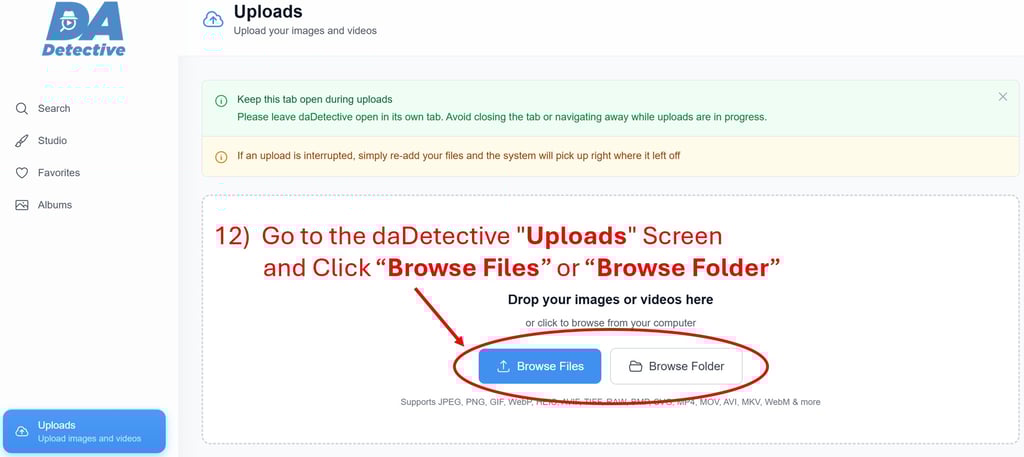
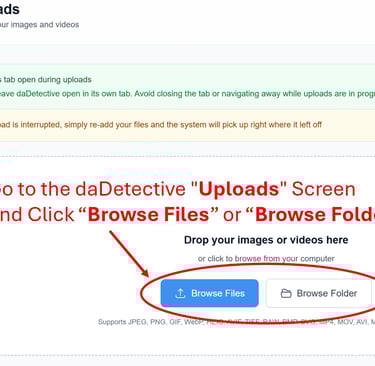
12) Go to the daDetective "Uploads" Screen and Click “Browse Files” or “Browse Folder”
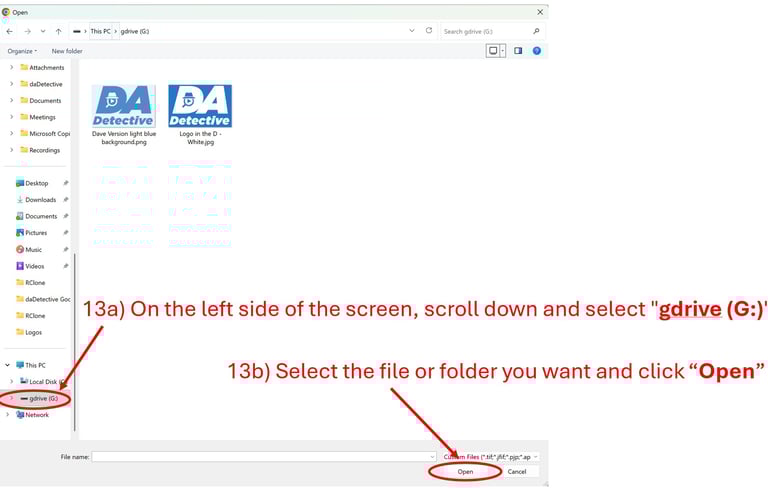
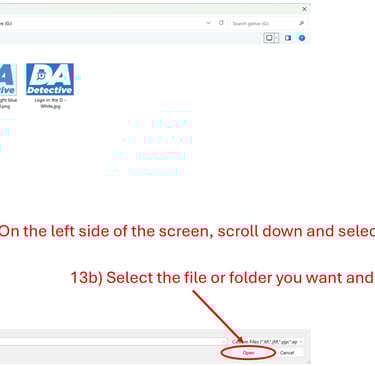
13a) On the left side of the screen, scroll down and select "gdrive (G:)"
13b) Select the file or folder you want and click “Open”
You now have installed all of the software required to access cloud files from your PC in daDetective and Windows Explorer. The setup utility created a copy of "Mount Google Drive", (or Mount Dropbox etc) on your desktop. This allows you to connect Google and see it as a drive in Windows Explorer any time you need to. Make sure to leave the black command window open while you are using it.
Common Issues
• I can’t see the “gdrive (G:)”, you closed the black command window, run “Mount Google Drive” (or Mount Dropbox etc)
• Windows blocked file → Click More Info > Run Anyway
• Browser did not open → Copy link from black window
• Drive not visible → Wait 30 seconds / reopen Explorer
• In the black command window you may see the following:
“2026/04/23 11:45:36 ERROR : symlinks not supported without the --links flag: /
This is normal and really not an error, you can ignore it
Technical Reference Section (Links download files)
To Learn About Our White Glove Service fill out the form below
Sound Interesting? Let's Talk!